How We Fixed the “Missing Valid Payment Method” Issue on Meta (After 30 Days of Frustration)

If you are seeing the “Missing valid payment method” warning in your Meta Developer / WhatsApp Cloud API dashboard and nothing seems to fix it, this article is for you.
I am writing this after nearly a month of daily frustration—opening the dashboard every day, hoping the warning would disappear, only to see the same error again and again.
This post is not a theory.
This is exactly how we solved the problem, after Meta support failed to help and no clear solution existed on the internet.
The Problem We Faced
For almost 30 days, our Meta dashboard continuously showed:
Missing valid payment method
We had already:
- Added a payment method
- Re-added payment methods
- Multiple cards
- Deleted the app and create new one many times
- Verified our business
- Used the Cloud API dashboard correctly
- Raised multiple support tickets
- Reported bugs using Meta’s official forms
- Even connected with Meta support over calls
What Meta Support Did (and Didn’t Do)
- Tickets were marked as “resolved” without any explanation
- Support agents were not aware of the root cause
- We were repeatedly redirected to generic bug-report links
- No actionable guidance was provided
In short, Meta’s customer support was ineffective for this issue.
Internet Was Not Helpful Either
We searched everywhere:
- Reddit threads (1–3 months old, still unresolved)
- Stack Overflow questions (no accepted answers)
- Facebook and WhatsApp developer forums
Many developers were facing the same issue, and no official fix existed.
The Breakthrough Discovery
Buried in a random comment, someone casually mentioned:
“Try adding GST / Tax ID.”
It sounded irrelevant.
But after everything else failed, we decided to try it.
And that was the solution.
The Exact Steps That Fixed the Issue
Follow these steps carefully.
Step 1: Open the Developer Account Showing the Error
Go to the Meta Developer Dashboard, where the “Missing valid payment method” error is visible.
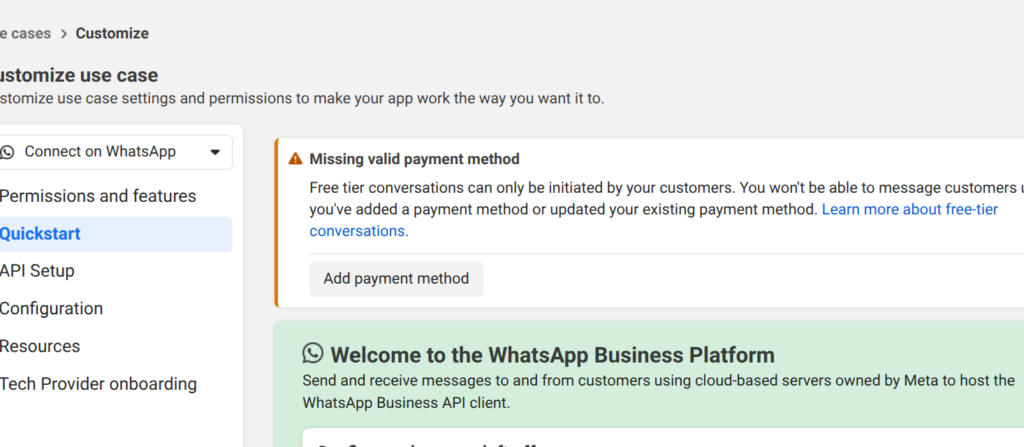
Click Add Payment Method.
➡️ You will be redirected to the associated WhatsApp Business Account.
Step 2: Open Payment Settings

Inside the WhatsApp Business Account:
- Click Payment Settings
➡️ This will redirect you to the Business Portfolio.
Step 3: Open Tax Info (This Is the Key Step)
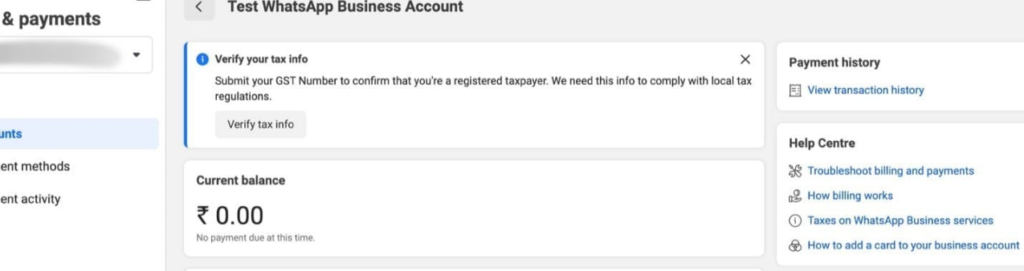
In the Business Portfolio:
- Look at the top banner
- You may see a warning asking you to verify tax info
At first glance, this looks unrelated—but this is exactly where the problem comes from.
Click verify tax info to open the form.
Step 4: Fill Tax Details Properly
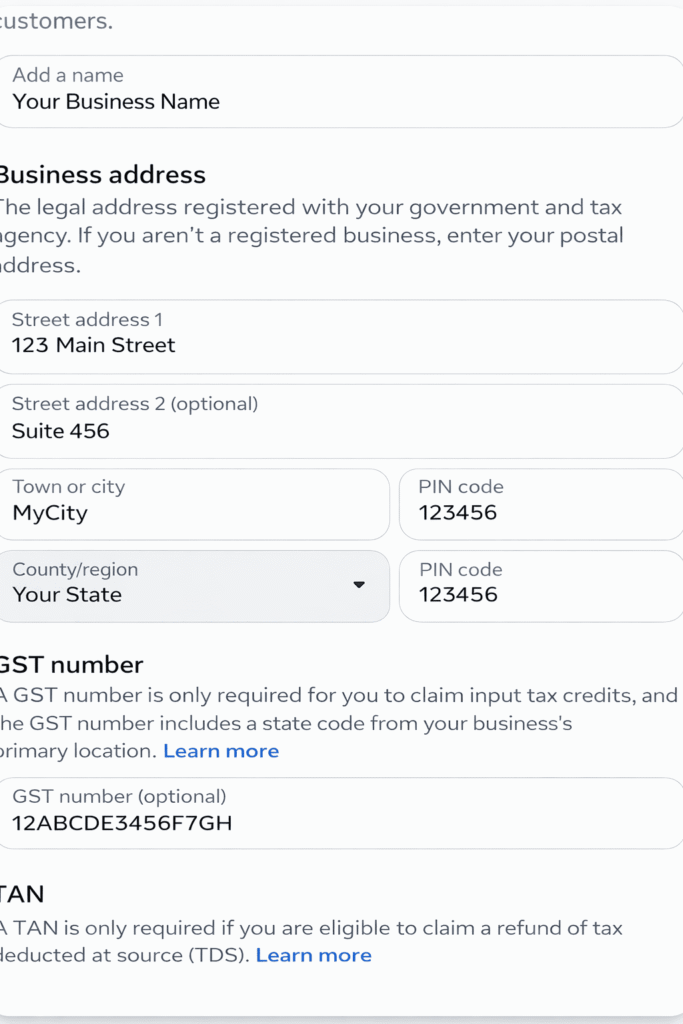
Fill in:
- Business name
- Business address
- GST number (or your country’s tax ID)
⚠️ Important:
If you skip the GST / Tax ID field, the error may not be resolved.
After submitting:
- You will see “Verifying your tax information” at the bottom
Wait a few seconds and refresh the page.
If the tax warning disappears, your issue is already fixed.
Step 5: Refresh the Original Error Page
Now go back to:
- The Cloud API dashboard
- Or the page where the error originally appeared
Refresh the page.
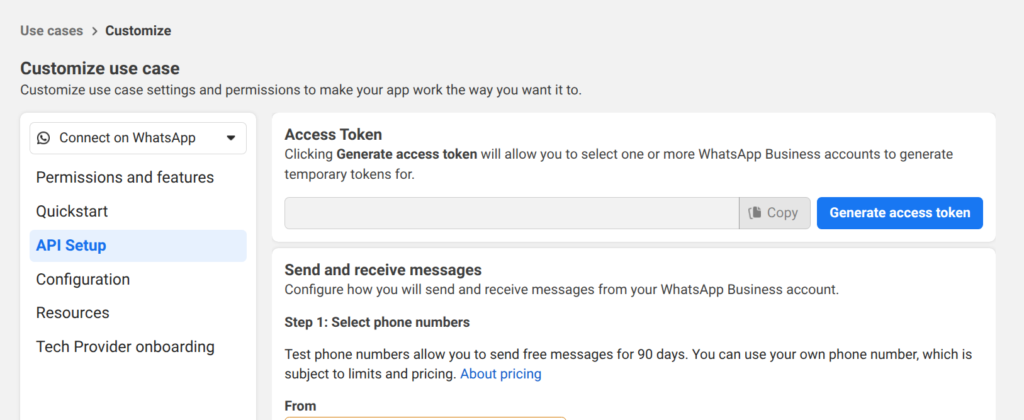
✅ The “Missing valid payment method” warning will be gone.
Final Thoughts
This issue wasted weeks of our time, delayed production work, and caused unnecessary stress.
We are sharing this so:
- Other developers don’t suffer the same frustration
- You can resolve this in minutes, not months
If this helped you, please consider sharing it—because Meta hasn’t.